Adding, finding and promoting students
The student list, adding a new student, the profile, moving everyone up at year end, and board registration details.
For:Owner & adminOffice & admissions
The student list
boornoo.com/dashboard/students
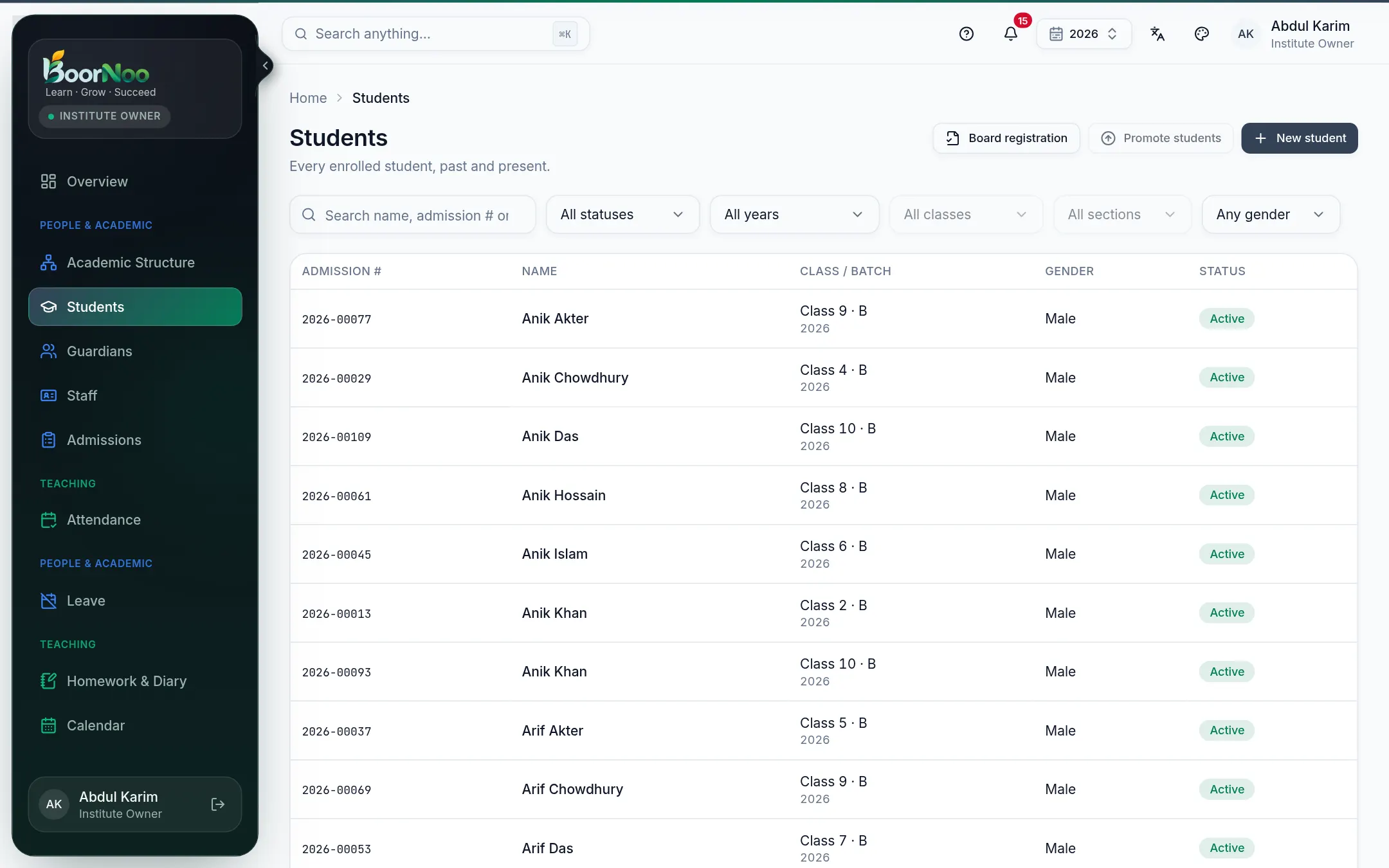
Point by point
Tap a number to see what it is.Point at a number, or scroll the list.
Adding a student
- 1Press New student.
- 2Enter the name, date of birth and gender. Choose the class and (or ); add a roll number if you use them.
- 3Save. The admission number is made for you (like 2026-00077).
- 4Open the profile and add a — SMS go to their phone number.
The student profile
- Details — photo, address, blood group, religion, birth registration number.
- Guardians — one or more; mark who the emergency contact is.
- Enrolment history — which class in which year.
- Fees, attendance, results, documents — all in one place.
Promoting at year end
- 1Create the new academic year first. See Starting a new year.
- 2Press Promote students. Choose From year and To year.
- 3Pick the next class beside each class — or Graduate for the last one.
- 4Turn on Failed students repeat to keep those who failed their last exam in the same class. You can also mark anyone Repeat or Skip one by one.
- 5Check the Preview, then press Promote now.
Board registration
On Board registration, pick a class — every student's roll, 4th subject, birth registration and parents' NIDs are on one sheet you can edit. Missing details are flagged. Fill empty rolls numbers the rest, and Download CSV gives you a file for the board.
Still stuck? Ask your institute's admin, or the BoorNoo team.