Notifications
BoorNoo tells people what happened — a payment received, results published, leave approved. Choose who hears about what, and how (in the app, email, SMS).
For:Owner & adminTeacherAccountantOffice & admissionsParentStudent
Reading your notifications
When the bell in the top bar shows a number, something new has arrived. Tap the bell for the latest few; open Notifications in the left menu for all of them.
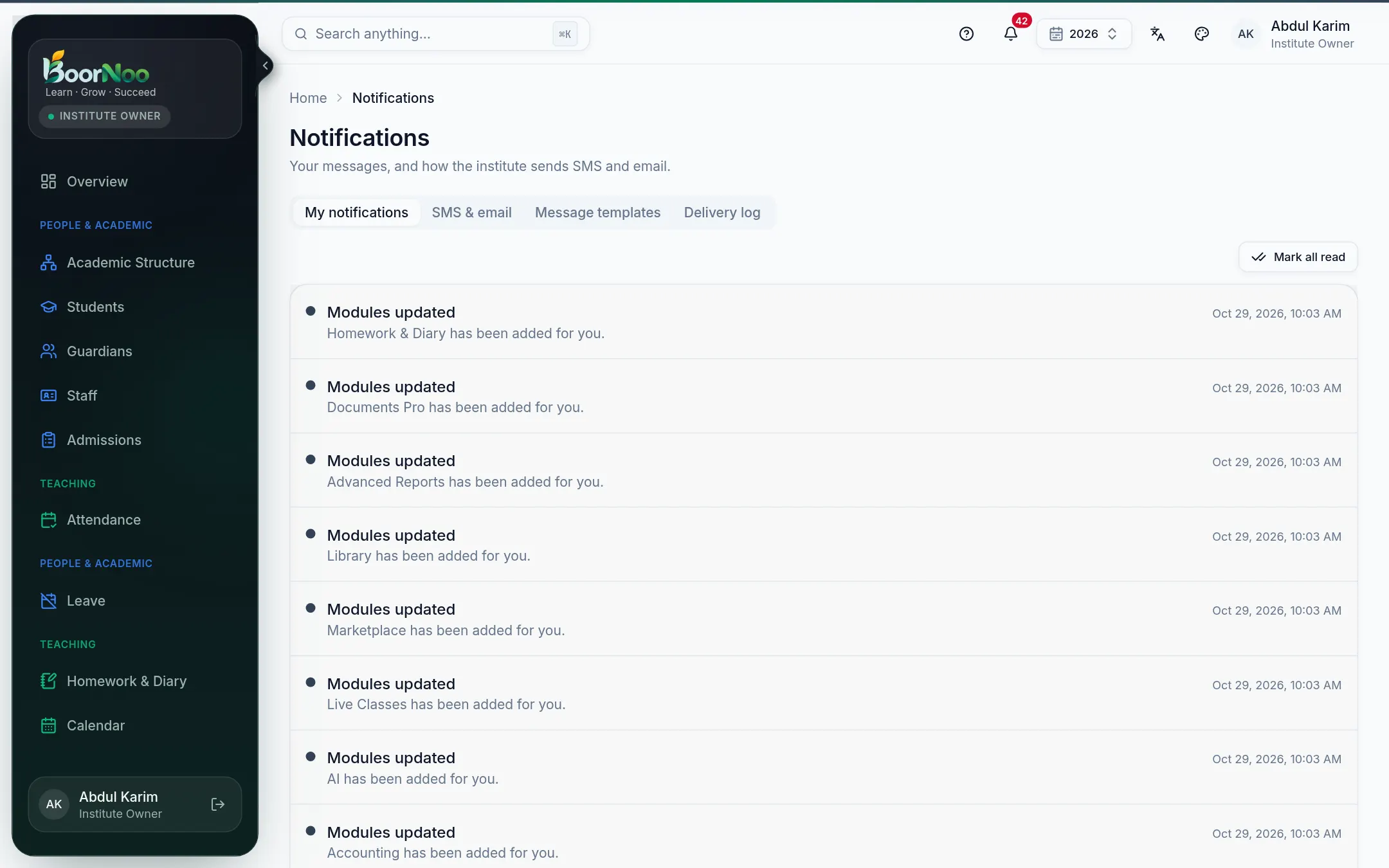
Point by point
Tap a number to see what it is.Point at a number, or scroll the list.
What goes out, and to whom
| When | Who hears | How |
|---|---|---|
| A fee is paid / refunded | Guardians, the student | App, email, SMS (with the receipt link) |
| A new invoice, due-date reminders | Guardians | App, email, SMS (when switched on) |
| Results published, homework checked | Guardians, the student | App (and SMS if switched on) |
| Leave applied for / decided | The approver / the applicant | App, email |
| A holiday is announced | Everyone | App |
In-app notifications always go out. Which ones also go by SMS is set on the SMS page's Automatic SMS.
Changing the wording (templates)
Every message's Bangla and English text can be reworded for your institute. Open Notifications → Message templates.
- 1Find the message you want to change and open it.
- 2Keep the {{student}}, {{amount}} style blanks — they're filled with the real name and amount when sent.
- 3For SMS, the number of is shown below — shorter costs less.
- 4Press Save. Use the default brings the original back.
Your own email or SMS account
Your institute can use its own SMS account (BulkSMSBD, Alpha SMS, MiM SMS, Twilio) or its own email (SMTP). In Notifications → SMS & email, turn on Use my own provider, pick it, fill in the details and press Test.
Still stuck? Ask your institute's admin, or the BoorNoo team.